
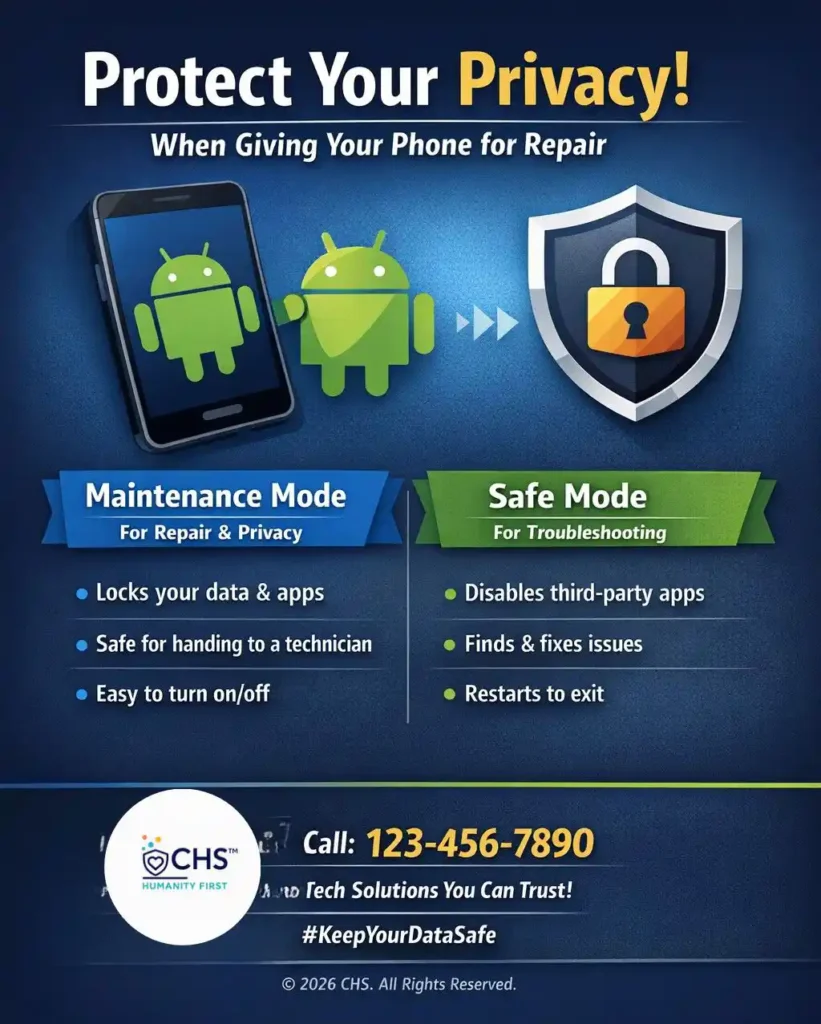
If you have a Samsung Galaxy, the feature is officially called Maintenance mode. It helps protect your personal data when handing your phone to a service technician.
What Maintenance Mode Does
- Creates a separate, clean environment for technicians.
- Blocks access to your photos, messages, accounts, and apps.
- Keeps only basic system functions and a few preloaded apps available.
How to Turn On Maintenance Mode (Samsung)
- Open Settings
- Go to Battery and device care (or Device care)
- Select Maintenance mode
- Tap Turn on and follow the prompts (you may be asked to set a lock)
How to Turn Off Maintenance Mode
- Restart the phone
- Enter your lock screen PIN or password when prompted to exit Maintenance mode
If You're NOT Using Samsung (Pixel, Motorola, OnePlus, etc.)
Many Android brands don’t include a dedicated “Maintenance mode” button. Instead, use one of these safer alternatives:
- Add a Guest user: Settings → System → Multiple users → Guest
- Create a separate user profile
- Backup your data and perform a factory reset (most secure, but most disruptive)
iPhone Equivalent
Apple doesn’t officially call it Maintenance mode. The closest options are:
- Use Guided Access (locks the device to one app)
- Backup your data and erase your iPhone before repair
Tip: Always back up your device before handing it over for repair, regardless of the method you choose.